


Leverage the best LuxAlgo Signals and Overlay settings for accurate backtesting. Signals & Overlays remains one of LuxAlgo’s most widely-used and popular resources. The toolkit offers a powerful range of advanced indicators, signal modes, and other dynamic capabilities – designed to maximize performance & streamline decision making.
As a trader yourself, utilize this system to strengthen your testing & charting processes – whether you’re a beginner or serious expert. Read on to learn about the best LuxAlgo Signals & Overlay customisations for backtesting algo trading strategies.
Setup LuxAlgo Signals & Overlay On TradingView

Set up Luxalgo signals and overlay on your Tradingview chart. Enter your TradingView username on the Luxalgo connect accounts portal. After successful setup, you will get instant access to exclusive tools. Navigate to “Invite-only Scripts” to access indicators such as Backtester OSC, PAC, S&O, Oscillator Matrix and many more. You can simply click on the Signals & Overlay script to add to your TradingView chart.
The S&O indicator shows various technical scripts directly on your TV chart. Access overlays such as smart trail, Luxalgo trade reversals zones, trend catcher, trend tracer and neo cloud. Each overlay setting modification affects the trade output. The number value ranges from 1 to 5, where higher values allow the script to return in longer market trends. Certainly, utilise signals and overlays in your backtesting strategy.
LuxAlgo Candle Coloring Setup
You should also consider LuxAlgo’s candle coloring setup for your backtesting processes. Leverage these capabilities to customize your candlesticks or bar charts’ body color with three available modes. Here’s a brief overview for each:
- Confirmation Simple – Default Method, Follows 3 Colors
- Confirmation Gradient – Based On Algos For Confirmation Signals
- Contrarian Gradient – Indicates Oversold & Overbought Markets
>> You can implement these features across line break, range, point & figure, Kagi, and Renko candles. For the best insights & results, make sure to disable your border settings first.
Once you’re ready, update it directly from your settings – simply select your preferred coloring model from the dropdown menu. Certainly, utilize the candle coloring setup to streamline, simplify, and increase algo trading win rate.
Luxalgo Signals And Overlay Alerts
Configure Luxalgo signals and overlay alerts for backtesting. The S&O toolkit offers built-in alerts within the trading charts. Use the “any alert() function call” rule to get an alert based on multiple conditions. You can even define custom alert parameters depending on your algo strategy. Understand how to configure the alert on the TradingView chart:
- Open the indicator settings and scroll to the condition section.
- Toggle on the conditions you want to include.
- Set your alert preferences and click on create.
You can even set up a custom message that will be used when a condition is triggered. Surely, check out Luxalgo S&O alerts settings for your automated trading strategy.
Configure Setting Based On Signal Modes

Configure indicator settings based on various signal modes for backtesting. The toolkit shows signals that influence the current price trend direction. Access two main modes, such as confirmation signals and contrarian signals. You can use each one depending on your different trading styles. Understand both the signals methodology to use them effectively in your order block trading strategy:
- Confirmation + Exits: These signals are based on a performance adaptive trend. You can use them to confirm an action a trader might take. These are two types of confirmation: normal signals and strong (+) signals. The indicator allows you to find areas for exiting a position.
- Contrarian + Exits: The contrarian signals allow you to spot potential tops and bottoms. You can use a contrarian script to exit a previous confirmation signal in profile.
Configure signal modes depending on your algorithmic strategy. Additionally, you can leverage TradingView order block indicator that helps to identify key reaction levels for accurate trade setups for your stratergy.
Optimize Sensitivity Setting

When you’re using signals in backtesting, you should optimize sensitivity preferences as well. These protocols maximize pre-defined statistics that can impact final results, including:
- Net Profit
- Overall Win Rate
- Profit Factor
- Maximum Drawdown
- Potential Ratio
>> Keep in mind, changing sensitivity can increase computation/processing time and trigger time-out errors. Of course, this typically occurs with large value ranges or testing windows.
After the test, you can see sensitivity values broken down in your advanced optimization dashboard. Results are sorted in descending order – so the highest-optimized statistics are listed on-top. Before executing backtests, carefully optimize sensitivity defaults with the machine learning trading toolkit.
Dashboard Optimal Sensitivity
Use LuxAlgo dashboard optimal sensitivity settings for backtesting. The sensitivity value is displayed on the Lux dashboard. You can customize the setting to get a confirmation or contrarian signal. The sensitivity optimization will allow you to backtest every triggered signal. These triggers range from 10 to 20 over the recent 250 bars. You can use the LuxAlgo S&O sensitivity settings on any ticker and timeframe. Surely, adjust the dashboard’s optimal sensitivity depending on your trading backtesting script.
Autopilot Signal Settings
Configure LuxAlgo autopilot signal settings for backtesting. Adjusting signal settings requires constant monitoring of changing market conditions. The autopilot enables you to adjust settings for optimal performance. Leverage the algorithm to trigger buy and sell signals depending on market movements. Navigate to Luxalgo’s advanced option to enable the option. Review some of the important adjustments for signal setup:
- Optimal Sensitivity for more precise signal.
- Autopilot Sensitivity to adjust signals dynamically.
The Autopilot tool adjusts sensitivity depending on short or long-term trends. You can implement the parameters to auto-adjust the configuration. Surely, use buy-sell oscillator Indicators along with signals and overlay for backtesting.
Fetch & Configure Trading Strategies
Additionally, utilize fetch & configure strategies for AI-powered backtesting. LuxAlgo’s AI Backtesting Assistants can help you automatically retrieve & execute powerful strategies quickly – without time-consuming manual iterations and reviews. Your assistant can instantly scan conditions, timeframes, tactics, and tickers to help you make informed decisions. Simply explain your goals & requirements to AI bots – then they’ll fetch a strategy that aligns with your criteria. Here’s a few successful prompts to help you get started:
- Choose A Strong Model Across Crypto Tickers With 10-Minute Timeframe
- Find A FVG Strategy With A 75%+ Winrate
- What’s The Best Strategy That’s Below Average Drawdown?
- 5 Best Options To Max Net Profits
- Strategies With The Highest % Of Winning Trades
Optimize your backtesting processes, strategies, data, and analytics with TradingView algo indicator.
Setup Entry & Exit Conditions

Enable custom S&O settings for your entry rules & exit conditions. By default, tests are executed by analyzing the latest two thousand bars. You can customize the exact range in the backtesting window settings panel. Here, you can also perform tests between two specific dates or timeframes. Or, click on “Entire History” for a comprehensive breakdown of recent trends & performance.
For external edits, there are several additional parameters to keep in-min:
- Exit Take Profits
- Exist Stop Losses
- Position Placeholders
>> Keep in mind, there are additional settings to customize for built-in, timed, partial, and on-signal/on-entry exits.
The S&O Backtester requires you to setup & confirm entry/exit parameters on your 1-Minute Scalping Algo. Additionally, automate your high-probability entries and exits with the LuxAlgo order block trading indicator.
Add Backtester (S&O) System
Add Luxalgo Backtester (S&O) System to your Tradingview Chat. The script uses the S&O toolkit to perform backtesting. Leverage more advanced indicator features for complete and diverse backtesting. You even can specify entry and exit rules for your auto trade execution. Review the signals and overlay backtest parameters settings:
| Settings | Description |
| Backtesting window | Sets backtesting range by Bars, Date, or Entire History. |
| Window bars | Number of recent bars used if bars are selected. |
| Window start | Start date for backtest if date is selected. |
| Window end | End date for backtest if date and window End are enabled. |
| Initial capital | Funds available at the start of the backtest. |
| Base currency | Currency used for backtesting |
| Order size | Amount to buy/sell in contracts |
| Commission | Fees per trade, in currency, contracts, or % of trade value. |
| Margin for long position | Equity percentage needed to open a long position. |
| Margin for short position | Equity percentage needed to open a short position. |
You can adjust the parameters to get more precise and accurate results. Surely add the Luxalgo Backtester (S&O) system to optimise your algo trading script.
ML Classifier Settings
Review LuxAlgo ML classifier settings for backtesting. You can enable the adaptive threshold classifier from the menu. The settings automatically classify both confirmation and contrarian signals. The level ranges from 1 to 4 on the trading chart. These numbers provide a market analysis to detect normal and strong trends. Check out what signal number indicates:
- 1 to 2: Indicate potential reversal or retracement.
- 3 to 4: Indicate a trend continuation.
You can even analyse deeper and filter numbers using advanced settings. Surely, understand the ML classifier settings to filter specific signals while backtesting.
Setting Up LuxAlgo S&O Pine Script
Set up LuxAlgo signals and overlay using Pine Script. The script calculates and tracks the areas where institutional money is moving. The toolkit uses the volume patterns and price action data to find these smart money flows. Follow the best practice to set up the script correctly:
- Start conservative: Use the Conservative preset and watch the market behaviour
- Know your market: Adjust sensitivity based on chosen market and assets.
- Add market context: Learn basic Pine Script fundamentals for better market analysis and script creation.
- Manage risk: Apply position sizing and stop loss to manage risk effectively.
Definitely, set up LuxAlgo S&O pine script for backtesting. Also checkout their Fair Value Gap Indicator to refine Pine Script signals by confirming volume-based market inefficiencies.
AI Backtesting Assistant
LuxAlgo’s AI-powered Backtesting Assistant leverages core capabilities from Signals & Overlays, as well as other widely-used toolkits. Implement a diverse range of strategies using conversational artificial intelligence algorithms. These systems scan large language models to deliver proven recommendations, contextual market data, and price trends.
Powered by artificial intelligence & machine learning, this toolkit is build to support the following models:
- GPT 4.1
- GPT-5 Mini
- GPT-5
- Qwen 3 A22B
- Gemini 2.5 Flash
>> Once configured, your assistant can rapidly review backtesting results from 10 million+ trading strategies. Performance is evaluated across commonly used timeframes & tickers – including stocks, ETFs, crypto, FX, and commodities.
Utilise AI trading strategy support assistants with powerful tools for Signals & Overlays. With scalping backtesting strategies, traders can test setups in low timeframes before going live. Additionally, learn how ChatGPT helps in trading by simplifying research and execution.
AI Backtesting With Signals & Overlays

Use Luxalgo AI backtesting tool to build and test a strategy. You can combine LuxAlgo Universal Conditions Identifier (LUCID) with the S&O toolkit to get signal confirmation. The backtest enables you to set up a complex logic using operators, placeholders and actions. You can connect the tool with your strategy to create buy and sell conditions based on win rates. Understand how to use AI Backtesting to copy strategies to TV:
- Open chart: Use a TradingView chart on the 15-minute timeframe.
- Add backtester: From your invite-only scripts add S&O
- LUCID setup: Open the S&O advanced conditions to set up LUCID
- Use scripted strategy: Paste the AI script into the scripted strategy area.
The AI-ready-to-use script will allow you to replicate a strategy quickly. Surely, use the Breakeven Algo Trading Strategy with signals and overlays for script creation and execution.
Signals & Overlays Script Review
There is no “perfect” indicator, tool or script that will give you a 60% win rate or 100% profitability. Trading is high-risk and most people lose money – not because of the tool, because they don’t know how to wield it. Yes, you may have a powerful weapon, but if you don’t know how to use it – it’s useless. For example, ChatGPT and AI models can now trade for you. But, if you don’t have a winning strategy, the tools themselves are not effective. You still must understand the fundamental aspects of market structure, SMC, ICT and price. Additionally, refining a strategy takes time, patience and testing based on real data.
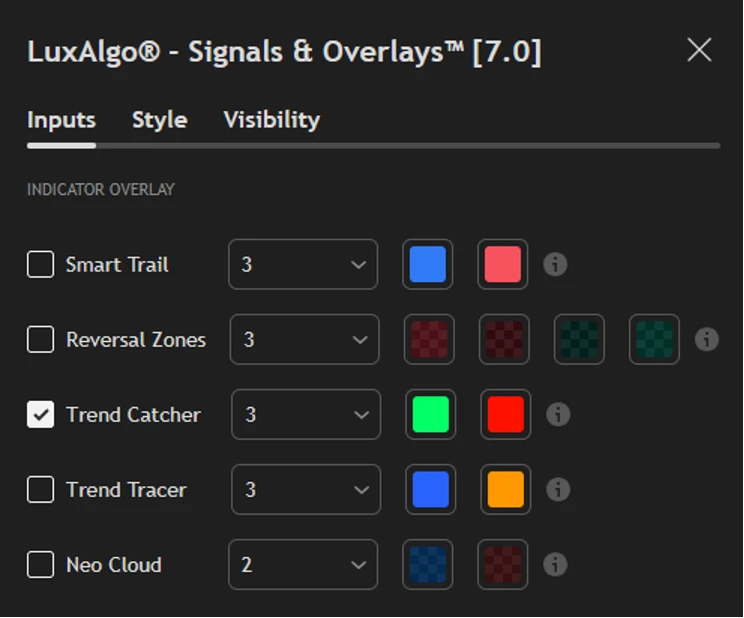
The premium LuxAlgo S&O script does include many features that are available for free from other developers. You can even find a free signals and overlays indicator on TradingView. What makes this signals script valuable is the data, strategies, and backtesting that you can leverage. For example, the Signals & Overlays toolkit has 20+ advanced technical analysis features, including:
- Smart Trail Overlays
- Reversal Trading Zones
- Trend Catcher Lines
- Trend Tracer Patterns
- Neo Cloud Highlights
Some traders call these indicators and signals “trash” or “Luxshit” algos. However, to objectively evaluate the S&O indicator, you must learn the Neo Cloud documentation, Smart Trail filters, and AI Backtesting capabilities. These are all tools that separate your strategy from a typical EMA crossover or support/resistance approaches.
Backtester (S&O) Optimisation Settings
Review the S&O optimization settings to perform backtesting. The optimiser allows you to configure win rate, net profit, profit factor, and potential ratio. You can also define maximum drawdown within the drop-down menu. These optimisations can be performed at any given time frame. After the configuration, the dashboard will show the backtest results for sensitivity values. You can even adjust the location of the dashboard on the TradingView chart. Surely, define Luxalgo signals and overlay parameters for backtesting.
Candle Coloring Mode
Leverage LuxAlgo S&O candle colouring mode while backtesting. The mode allows you to change the colour of the candle bars. The application can be done on the TradingView chart directly. You can choose from three colouring modes depending on your trade style. Within this, the two modes are based on signal methodologies. The candle colouring on the chart can be done using Heikin-Ashi, Renko, Kagi, line break, and point & figure. Check out Luxalgo’s three candle colour modes:
- Confirmation simple
- Confirmation gradient
- Contrarian gradient
You can enable the mode from the Luxalgo colour mode dropdown. Surely, configure the candle colouring mode for better chart analysis.
LuxAlgo Dashboard Settings
Configure LuxAlgo dashboard settings to backtest various algos accurately. Start by adjusting the location and size of your dashboard within the LuxAlgo interface. In particular, you can manually place the dashboard window at the top-right, bottom-left, or bottom-right positions of your chart. Based on the signals and metrics you prefer, you can configure the dashboard size to be small, normal, or large.
For backtesting, you can configure different Lux Metrics – including trend strength, volatility, squeeze index, and volume sentiment. If you’re backtesting AI algos for a high-volatility market, display the Lux Volatility metric on your dashboard to track market conditions in real-time. This way, you can adjust your algos to manage risks and avoid major losses. Meanwhile, configure the volume sentiment metric to be displayed if you want to backtest your algos for the common price trends.
Results Tracking & Analysis Settings
Finally, configure LuxAlgo to analyze results & analysis settings to fine-tune your strategies for maximum performance. Ideally, your backtesting setup should aim for win rates above 55% with a profit factor of 1.5+. If you consistently notice consistent poor results using the standard backtesting configuration, adjust your false signals based on volatility and price action. Ideally, you adjust the results tracking to reduce false signals:
- Optimize overbought/oversold levels according to the ongoing market behavior
- Adjust the analysis settings with confirmation techniques to automatically analyze market at various timeframes
- For volatile markets, adjust the result settings to minimize noise while backtesting strategies
Ultimately, adjusting these settings can help optimize your backtested strategies for steady performance during various market phases.
Choose The Right Setting Method
Select the right signals and overlay setting method for backtesting. The optimal sensitivity is the most precise method available within the dashboard. You need to understand your trading style and timeframe to optimize signals. The indicator setting can be adjusted manually or automatically. Check out the recommended method based on your strategy:
- Manual adjustments: Use lower sensitivity values of 5-10 to trade shorter-term trends. Whereas, use higher sensitivity values of 20+ for longer-term trends.
- Automatic adjustments: Use precise signal settings that adjust automatically without human interaction.
You can adjust the manual settings value to 12 for finding medium-term trends. Surely, choose the LuxAlgo signals and overlay settings based on your trading needs.


